First setup
Your first leadli.me channel: from Telegram to your first ad
Updated September 22, 2026
Connect your Telegram channel and Meta, then choose a ready-made page or your existing website. At the end, you will have the right URL for your ad. This step-by-step setup includes screenshots and a separate route for SendPulse.
1. Open the dashboard and add your channel
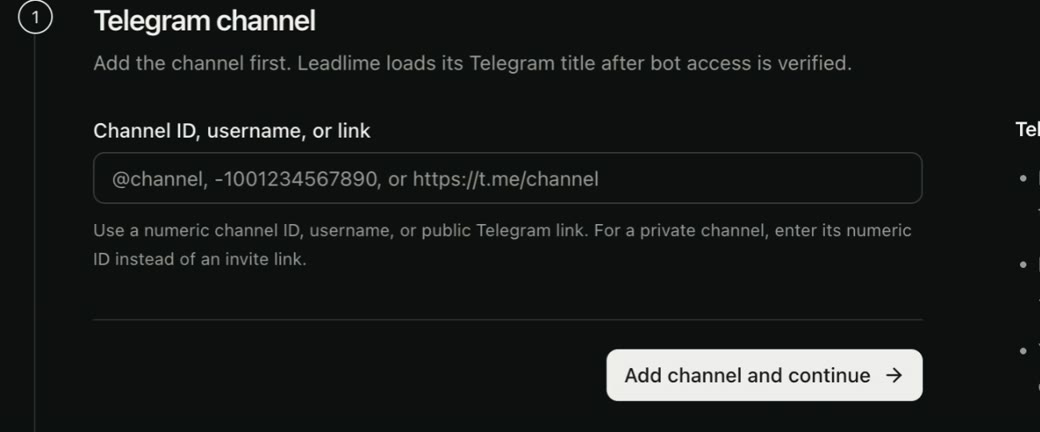
Open the dashboard at app.leadli.me and sign in. Go to Channels and select Connect channel. Enter the channel’s public @username or t.me URL, then select Add channel and continue.
leadli.me will load the channel name and photo from Telegram after verifying bot access. The channel is not active yet; that is expected.
2. Create and connect a Telegram bot
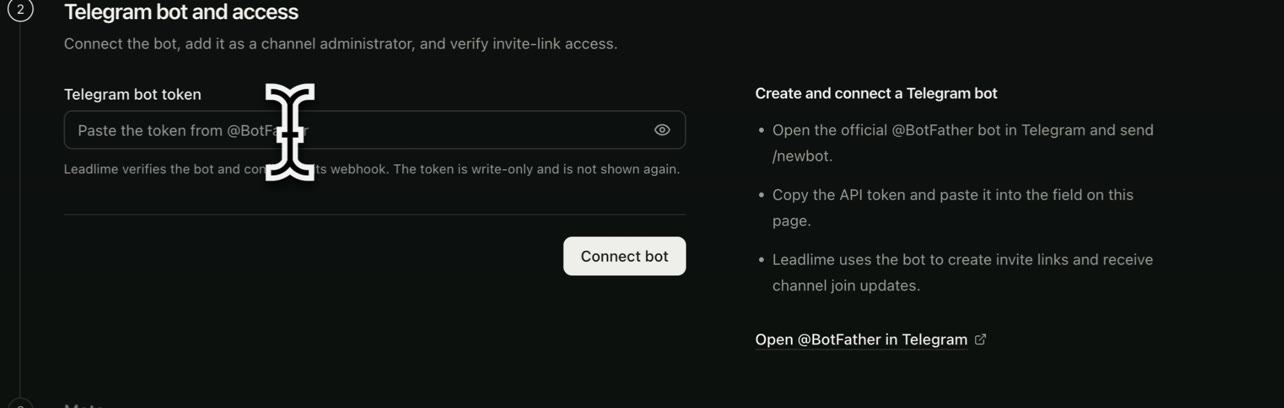
Open the official @BotFather in Telegram and send /newbot. Choose a name and a username ending in bot. BotFather will give you an API token.
Paste the token into Telegram bot token in the leadli.me setup form and select Connect bot. Do not put this token in a client message or screenshot.
3. Give the bot access to the channel
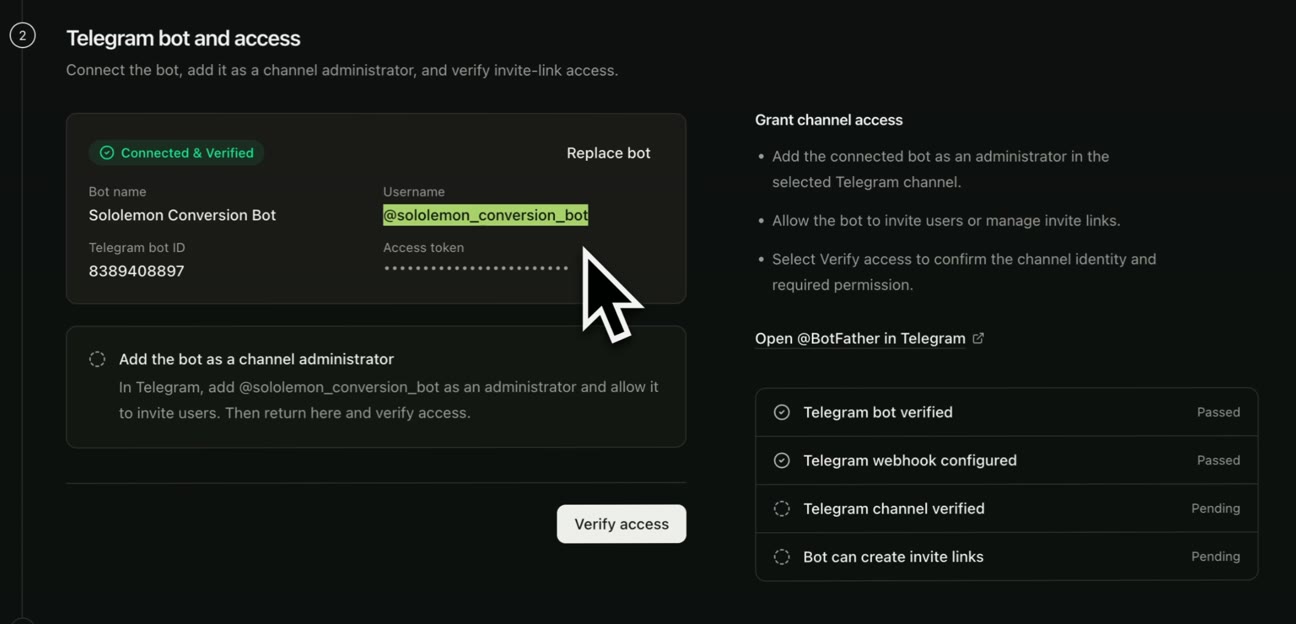
In this Telegram channel's settings, open Administrators and add the bot you just created. Keep Invite Users enabled so the bot can create invite links.
Return to leadli.me and select Verify access. The setup form should confirm the channel and the bot's invite-link permission. If it fails, check that the bot was added to the correct channel and its permissions were saved.
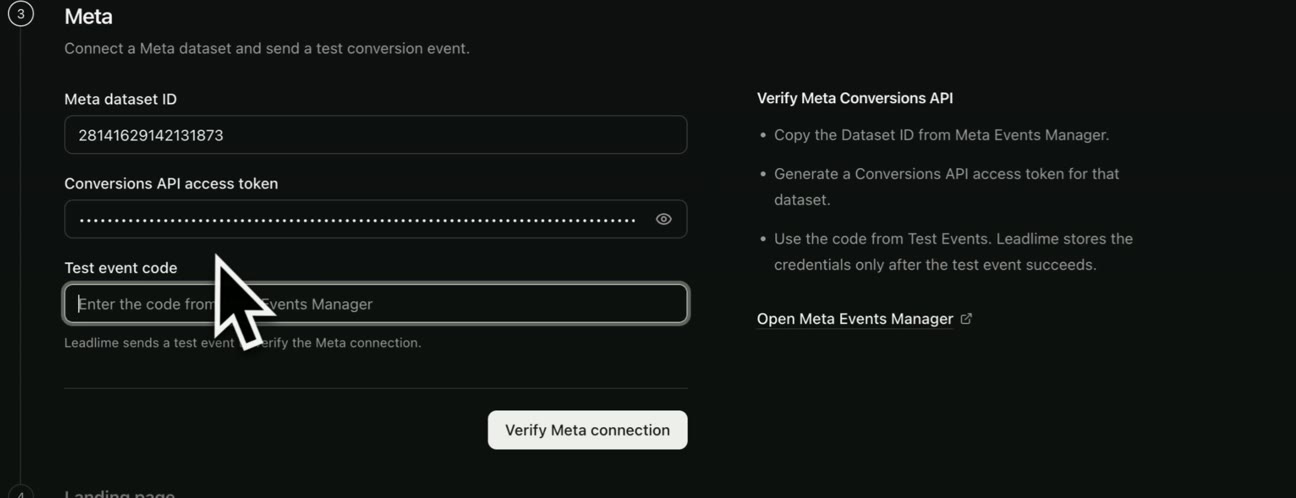
4. Connect Meta
First, open Meta Ads Manager and sign in with the Facebook account that has access to the right business and ad account. If Meta asks you to choose an account, select the one you will use to run the ads.
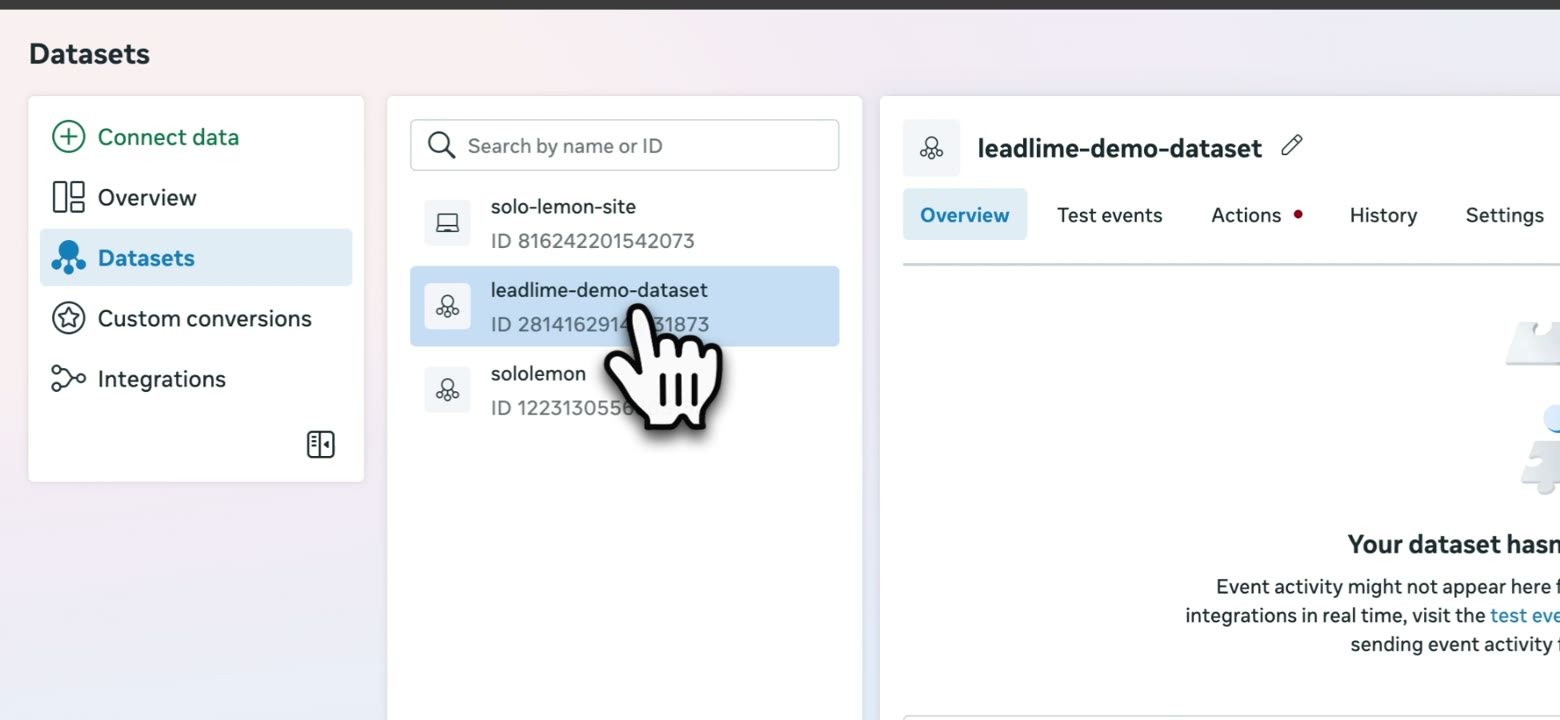
In the Ads Manager left menu, open All tools and choose Events Manager. In Events Manager, select Datasets on the left, then the dataset for the website your ads will open. Create one if needed; do not copy an unrelated dataset ID. If Meta shows an access error, check the selected business or ask its administrator for access to the dataset.
You need three values from that same dataset:
- 1
Copy the Dataset ID
Open the selected dataset and find its Dataset ID under Settings. Paste it into the Meta dataset ID field in leadli.me. This is not your ad account or campaign ID.
- 2
Generate a Conversions API token
In the same dataset's Settings, find Conversions API and select Generate access token. Paste the token into the second leadli.me field. If the option is missing, check your access to the dataset in Meta. Do not share the token in a message.
- 3
Copy the Test Events code
Open Test Events for that dataset and copy the code for testing server events into the third field. This temporary verification code is not the Conversions API token.
- 4
Verify the connection in leadli.me
Select Verify Meta connection. leadli.me sends a test Lead event and saves the connection after Meta accepts it. This checks the connection; it is not a confirmed Telegram join. Test a real event after making a test join.
5. Choose a page for your ad
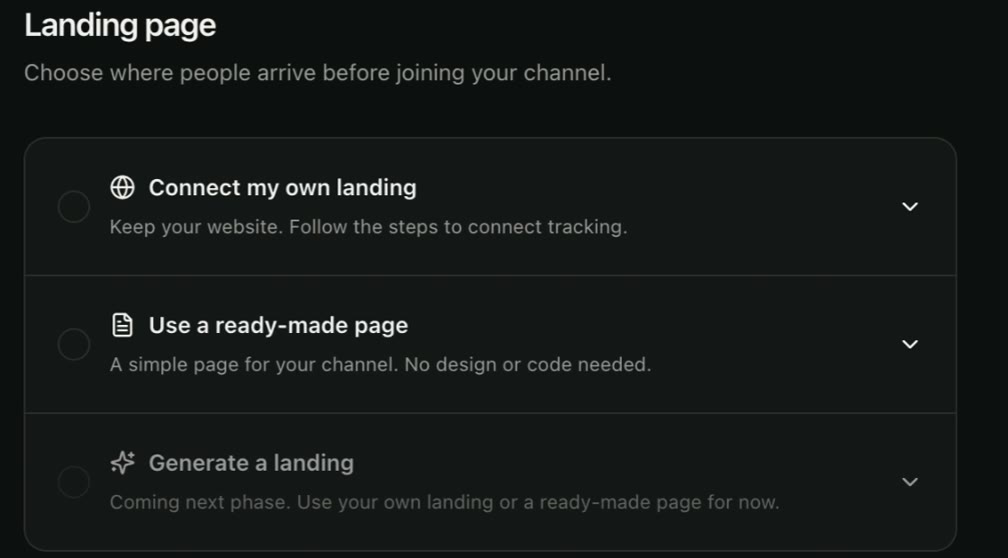
If you do not have a website, choose Use a ready-made page under Landing page and select Create page. leadli.me creates a simple page from the channel name, photo, and description, and adds tracking without code.
Open the page and test its Telegram button. If you change the channel name, description, or photo in Telegram, refresh the ready-made page from Telegram in leadli.me. Then check and confirm the page. If you already have a SendPulse site, follow the route below instead.
If you already have a websiteAlready have a SendPulse pre-landing page?
Do not create a second page. Choose Connect my own landing at this step. Then install the two items leadli.me generates specifically for your channel:
- 1Copy the full tracking script from leadli.me. In SendPulse, go to Websites → your site → ⋯ next to the relevant page → Settings → Custom code. Paste the script into the <body> field and save.
- 2For the Telegram CTA, copy the complete link HTML with data-leadlime-subscribe from leadli.me. Replace the regular Telegram button with a Custom code widget in SendPulse and paste the HTML. Do not leave the old direct t.me button alongside it. SendPulse's Buttons widget documents URL input, but not the HTML attribute this integration needs.
- 3Publish the page. Open its public URL (not only a preview), click the Telegram button, and check script, button, and domain detection in leadli.me. Once all checks pass, confirm the detected domain and continue to step 6.
Your particular SendPulse page still needs to be tested at its published URL. Never send Telegram or Meta tokens to anyone; the page URL and a screenshot of the check statuses are enough for troubleshooting.
6. Copy the ad URL and activate the channel
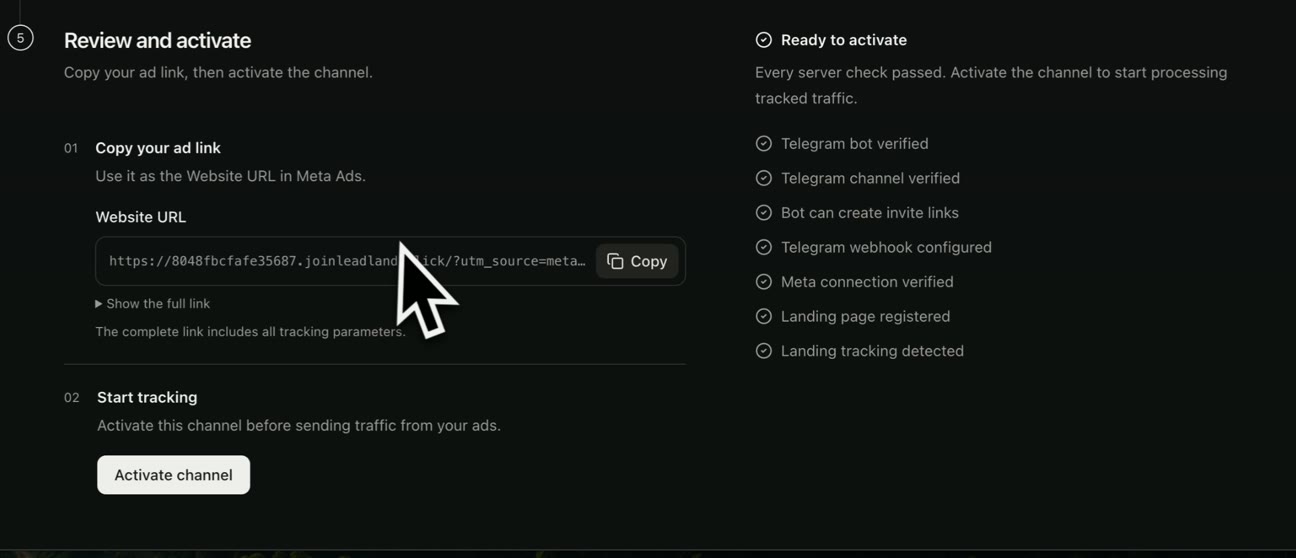
On Review and activate, wait until all checks on the right pass. Select Copy beside Website URL. This link already contains Meta tracking parameters; do not shorten it or retype it manually.
Select Activate channel before sending ad traffic. Activation enables tracking; it does not create an ad in Meta.
7. Put that URL in your Meta ad
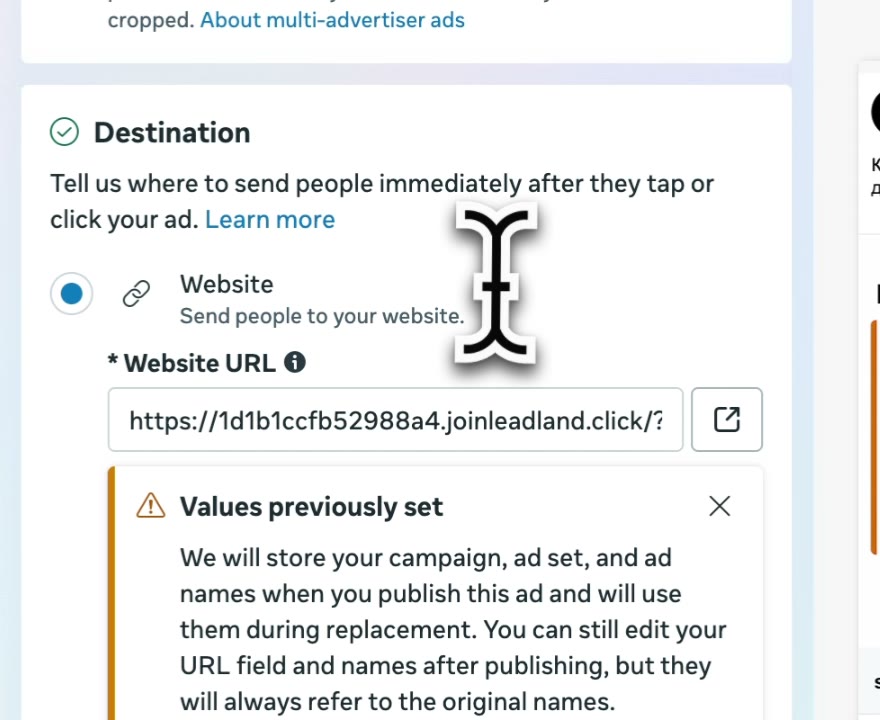
Open the relevant ad in Meta Ads Manager. At the ad level, find Destination, choose Website, and paste the URL you copied into Website URL. Save and check the preview.
The ad should point to your connected page—ready-made or SendPulse—not directly to t.me. When someone opens the page and actually joins the channel, leadli.me can match the join to the visit. Make one test visit and join before committing budget.
Direct answers
Do I need my own website to start?
No. Choose Use a ready-made page in the setup form. leadli.me creates a simple channel page and adds tracking automatically. If you already have a SendPulse page, you can connect it instead; see step 5.
Why does the bot need administrator access?
It creates individual invite links and receives Telegram's join confirmation. Without permission to invite users, leadli.me cannot connect an ad visit to a real subscriber.
What if I do not have a Meta dataset yet?
Create one under Datasets in Events Manager. Open it to find its ID, generate a Conversions API token in Settings, and copy a test code from Test Events.
Can I connect my SendPulse pre-landing page?
SendPulse documents page-level custom code and a Custom code widget for an HTML CTA. That provides an installation route, but your published page still needs to pass leadli.me's script, marked Telegram button, and domain checks.
Which URL should I put in Meta Ads?
On the final setup step, select Copy beside Website URL. Paste that exact address into Destination → Website URL at the ad level. Do not use a regular t.me link or remove the tracking parameters.
How do I test before spending on ads?
Wait for Ready to activate, open the ready-made page and test its Telegram button. Activate the channel, then make one test visit and join. A confirmed join appears only after actually joining the channel.
Primary sources
Test attribution on one public channel.
Use a ready-made page or connect your website, test the route to Telegram, and make one test join before running ads.
Try leadli.me